

1. Pre-system steps
Before doing any system-related imports, it is critical to first perform a few data-related steps.
DynamicFAR initial import date
The switch to DynamicFAR will occur at the end of the most recently audited financial year-end date.
E.g. An entity’s year-end is 31 December. They require a DynamicFAR setup midway through their 2026 financial year, so we should request their latest audited asset register - typically 31 December 2025. The values of assets at that date will be relevant for the initial import.
It is important to import audited data, because once imported, the system regards it as final and any changes to the data would need to be re-imported (or if it’s a correction of error, it needs to be imported as such an event).
Data request
If no data has been received from the client yet, the following can be requested:
-
The latest audited asset register (that agrees to the signed financial statements)
-
The latest audited and signed financial statements
-
Any supporting schedules or registers (e.g. WIP, other asset line items, etc)
It is important to clarify to the client that the asset register must include the following information:
-
Asset barcodes (no duplicates allowed)
-
Classifications and their estimated useful lives
-
Asset acquisition dates
-
Asset Cost, Accumulated Depreciation and Accumulated Impairments as separate columns
-
Asset’s remaining useful life (on the import date)
-
Asset residual values (where applicable)
Identify relevant assets
Once the asset register is received, identify and extract only the assets that existed on the import date identified (e.g 31 December 2025).
Filters can be used to remove:
-
Assets with disposal dates on/before import date (ensure their CV and Cost are 0)
-
Any other assets with 0 cost and 0 carrying values
-
Assets acquired after the import date (these assets will subsequently be imported as additions for the new financial year)
Identify invalid data
By inspecting the provided asset registers, identify the following:
Duplicate barcodes
The business rule for the system is that every asset imported needs a unique barcode. For assets that don’t typically have barcodes (e.g. buildings), a unique identifier still needs to be provided to import as the ‘barcode’.
If duplicate barcodes exist, there are two ways forward:
-
Rename duplicate barcodes so that the assets can still be imported. E.g. 3 duplicate barcodes identified (ABC123). Renamed to “ABC123”, “ABC123_duplicate1”, and “ABC123_duplicate2”
-
Remove these assets from the population, and request the client to provide new barcodes.
The choice of which approach to follow will be the client’s perogative. Always confirm with them before continuing the import.
Assets with disposal dates but having carrying values
There are some cases where assets are marked as disposed in the asset register, but still have closing Cost / Accumulated Depreciation and Impairments / Carrying Values.
This is a case of invalid data and the follow up needs to be confirmed with the client. Either the assets should be ignored in the import and removed from the population, or the client can confirm the assets were never disposed and should be included in the import.
Invalid or suspicious remaining useful lives
The business rule for the system is that every asset should be imported with their remaining useful life in days. No decimals will be accepted, so always ensure RUL in days in rounded up.
This data in client asset registers can come in different shapes and forms. Sometimes it is already simply stated in days, sometimes it’s in years and a conversion needs to be performed by applying a calculation.
Important to note (system rule):
-
Number of days in a year = 365,25 days (average of 1 leap year every 4 years)
-
Number of days in a month = 365,25 / 12
Thus, let’s explore two examples:
|
Client Register |
Practical Example |
|---|---|
|
RUL in years |
An asset shows a RUL of 4.25 years, but this needs to be converted to days for the import template. RUL in days = Average number of days in a year x Asset RUL in years RUL in days = 365.25 x 4.25 RUL in days = 1552.3125 (this needs to be rounded up with 0 decimals) RUL in days = 1553 |
|
RUL in months |
An asset shows a RUL of 24.5 months, but this needs to be converted to days for the import template. RUL in days = Average number of days in a month x Asset RUL in months RUL in days = (365.25/12) x 24.5 RUL in days = 745.7188 (this needs to be rounded up with 0 decimals) RUL in days = 746 |
Additionally, sometimes assets have improbable or suspicious RULs in the asset register. E.g. an asset belonging to a class that depreciates over 12 years is unlikely to have a RUL of 40,000 days (this is an actual scenario that we have seen in practice). Be vigilant and use your Excel filters to identify any such suspicious assets. Set them aside and request investigation from the client.
Assets with negative balances
Some assets may have costs or carrying values that are negative. This is not valid and these assets should be removed from the population for the client to investigate. The client must then inform you on how to proceed with the import of these assets.
Assets with missing data
A number of data points will be required for each asset during the import process. If any of this information is missing, a follow up will need to be initiated with the client (or if you are confident you know the data well enough, you can populate it yourself).
-
Asset barcode
-
Asset name
-
Asset description
-
Purchase date
-
Cost
-
Accumulated Depreciation
-
Accumulated Impairments
-
Asset Classification
-
Remaining useful life in days
2. Entity settings
Once all assets eligible for import have been identified, you can navigate to the DynamicFAR system for further steps.
When accessing a new entity’s asset register for the first time, the Edit Settings page will be visible. Navigating to other parts of the system will not be possible until the entity settings have been saved. The following screen will persist:
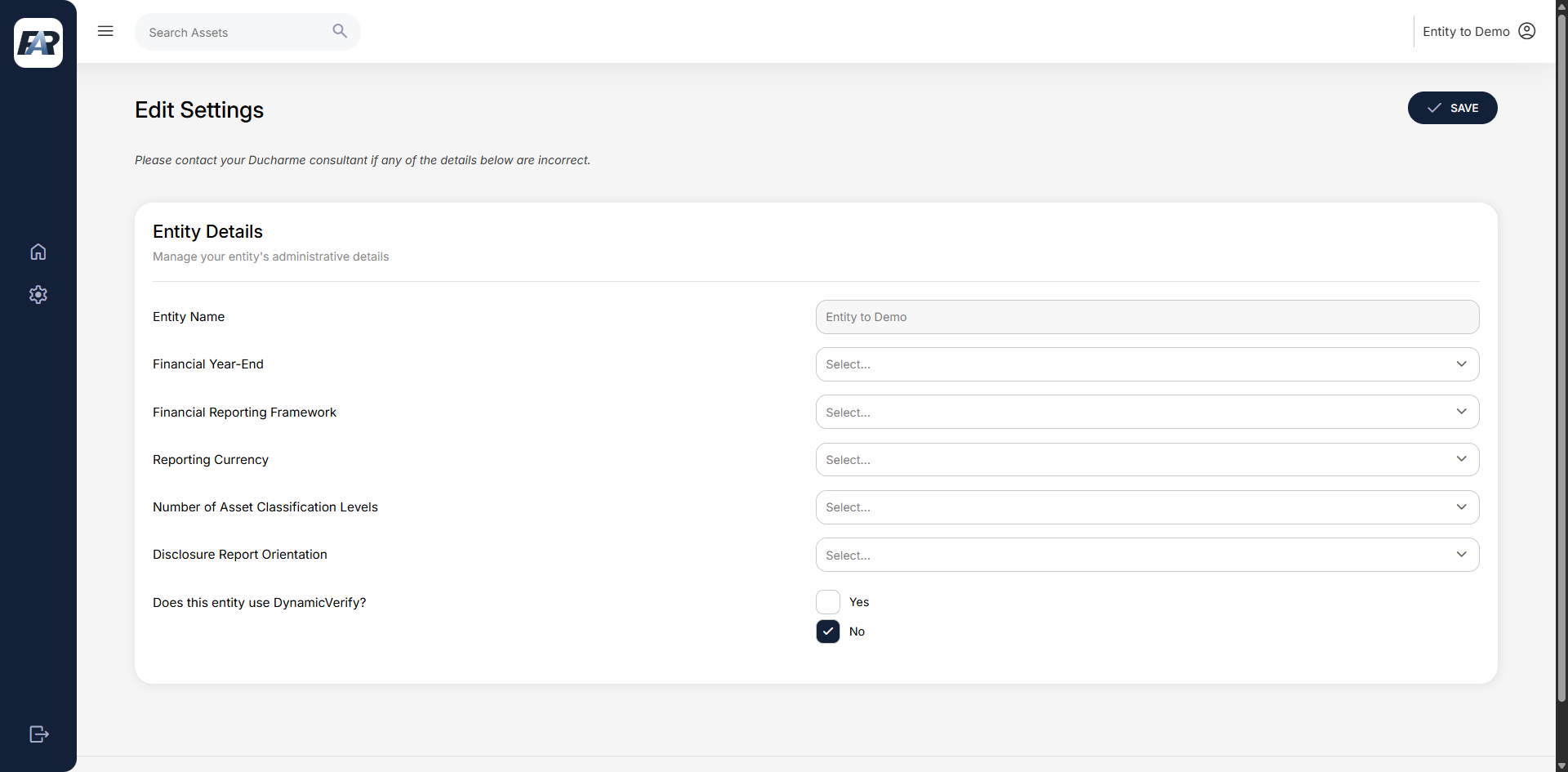
Fields required to save entity settings:
-
Financial year-end (selection of year-end months January - December)
-
Financial Reporting Framework (currently there is no impact on system functionality for the different options here, so simply select the applicable framework)
-
Reporting Currency
-
Number of Asset Classification Levels (see sub-note 2.1 below)
-
Reporting Asset Classification Level (see sub-note 2.1 below)
-
Disclosure Report Orientation (see sub-note 2.2 below)
-
Entity use of DynamicVerify (yes or no)
Note 2.1 - Asset Classification levels
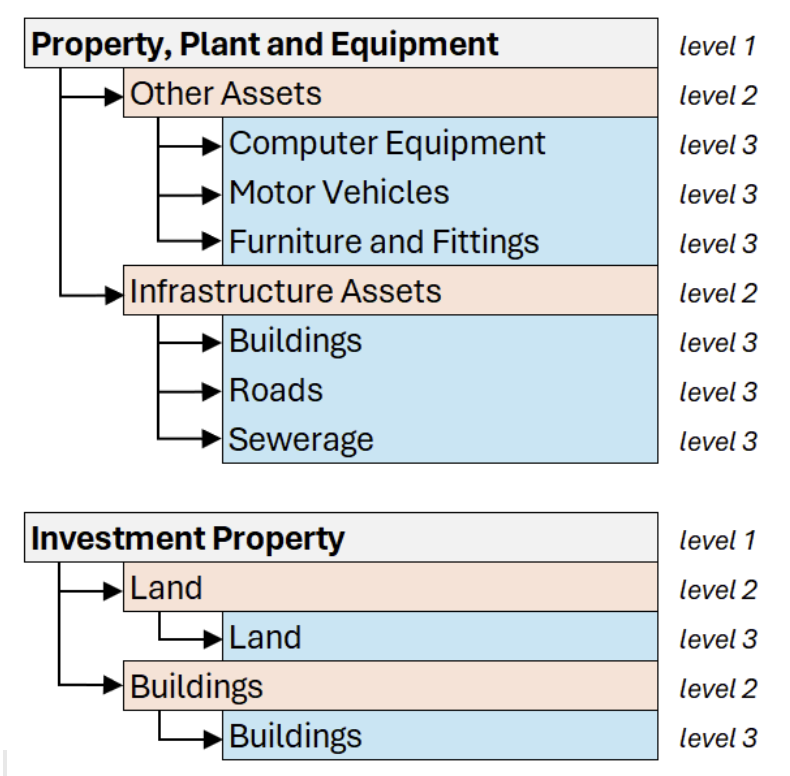
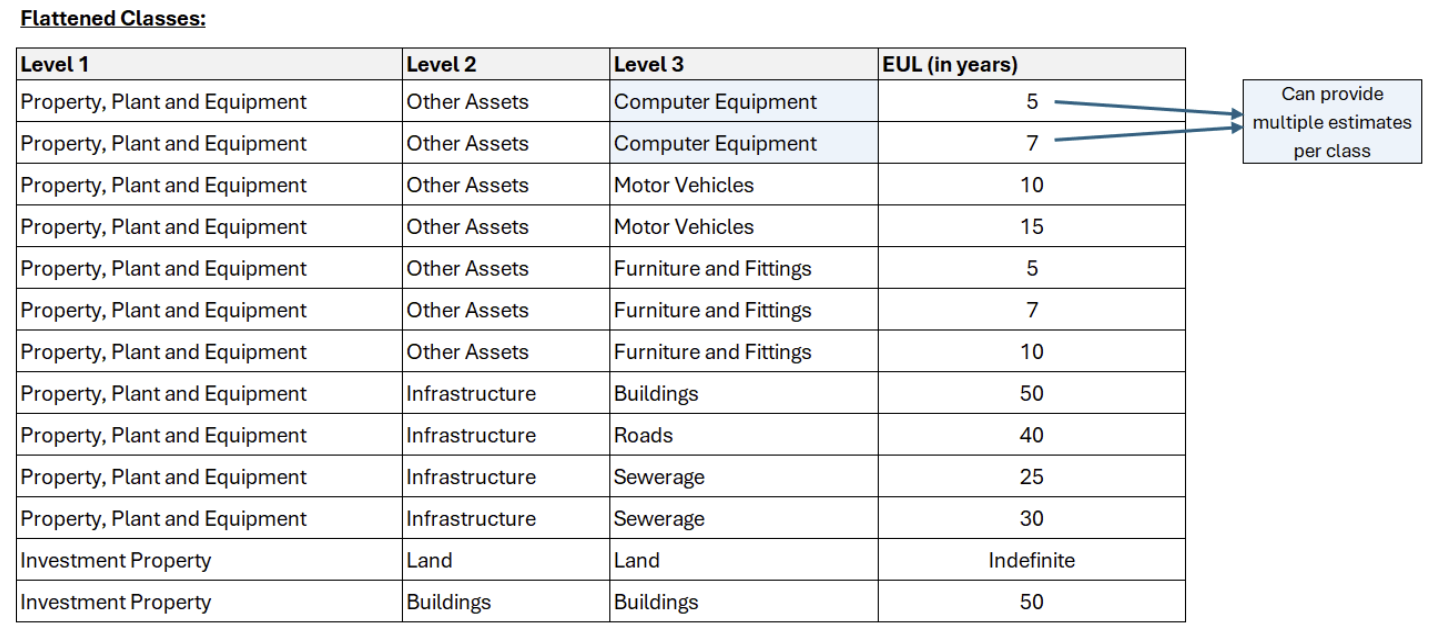
Prior to importing an entity’s asset classification hierarchy, it is important to indicate on the system the number of class levels the entity uses.
By inspecting the provided asset registers for the entity’s class hierarchy, determine these 2 things:
-
Total number of class levels (minimum required is 2 levels, maximum is 7)
The business rule for the system is that level 1 will always be the split between the major asset classes within the financial statements, e.g.:
-
Property, Plant and Equipment
-
Intangible Assets
-
Investment Property
-
Reporting class level (this level includes all asset classifications as it would be disclosed within the entity’s financial statements). The reporting class level does not necessarily have to be the lowest level. If the entity further classifies their assets into sub-categories within the reporting class, that is allowed.
Note 2.2 - Disclosure Report Orientation
Disclosure reports can be generated by the system in one of two formats: Vertical Orientation or Horizontal Orientation. The differences can be seen in these screenshots:
Horizontal Orientation (classes are displayed across columns)
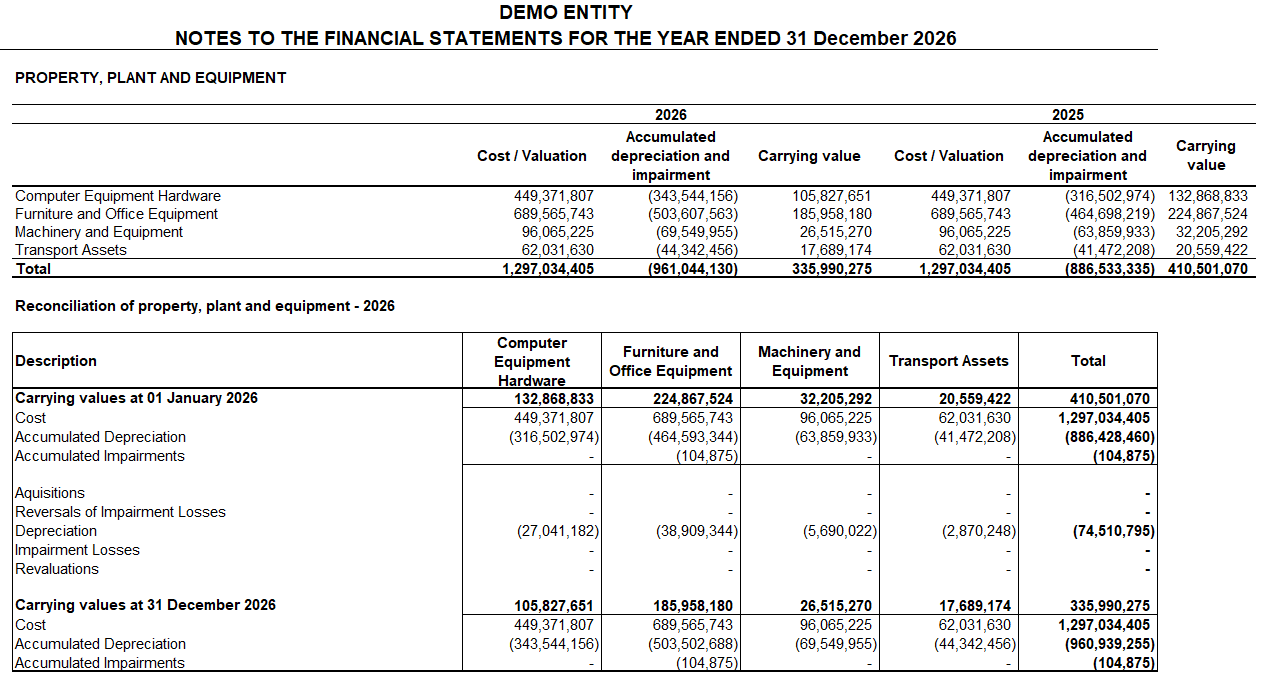
Vertical Orientation (classes are displayed in rows)
3. Importing Asset Classifications
When an entity’s settings have been saved, the next step is to import the entity’s asset classification structure. The complexity of asset classifications may vary from entity to entity, however they all follow a similar tree-structure.
Populate the classification import template with the following:
-
Level 1 breakdown: Ensure this represents the major asset classes from the Financial Statements as it would be split on the Balance Sheet and into various notes:
-
Property, Plant and Equipment
-
Investment Property
-
Intangible Assets
-
This selection is from a pre-populated drop-down menu in the template. No manual entries will be accepted.
-
Level 2 - 7 breakdown: Please ensure your spelling is correct and consistent across all classes, e.g. “Furniture and Fittings” will be imported separately from “Furniture & Fittings”. You need to keep it cohesive. Also note that every single line of asset classification being imported needs all the levels to be populated. You cannot have some classes with information for all 3 levels, but others only have 2 levels. If you choose 3 levels in the settings, you need to provide 3 levels for all classes.
-
The subsequent measurement model. This will be either Cost Model or Revaluation Model.
-
The base residual value percentage. Based on the policy, there might be a residual value percentage applied to the cost of an asset within the class. This percentage needs to be imported here. Whole values are expected, e.g. a 15% residual value must be imported as “15”, not as “0.15”.
Even if some assets within the class are exempt from the class residual value percentage, you still need to import the percentage here if MOST assets apply and if the policy states it so. Later on, you can identify assets that are exempt and import them as such within the Asset Import process.
-
The depreciation method. This will be either StraightLine, DiminishingBalance or UnitsOfProduction, and selectable from a pre-populated drop-down menu.
Units of production method is still a work in progress. If any client uses this method, please reach out to the development team so that they can prioritise the functionality of this method on the system.
-
The class estimated useful life (in months): Only required if the class depreciation method is StraightLine
-
The class depreciation rate (e.g. “20” if the rate is 20%): Only required if the class depreciation method is DiminishingBalance
-
The class production units (e.g. 120000 if the car is expected to travel 120,000km): Only required if the class depreciation method is UnitsOfProduction.
-
The class revaluation model method. This selection relates to GRAP 17.40 - the two different methods of calculating and applying the revaluation of assets. The system needs to be aware of the method chosen in order to perform calculations accurately.
Only required if the class measurement model is Revaluation Model (can ignore this input if Cost Model)
-
GRAP 17.40(a) = ProportionateRestatement
-
GRAP 17.40(b) = EliminationAgainstCost
4. Importing Opening Assets
-
Be aware of the import date you are working with.
-
Perform the following steps on a per-class basis. It is much easier to do reconciliations to the AFS when working with 1 class at a time.
-
Use the “DRC Assets” import type on the system. This is the import relevant to the initial setup, and will only ever be used during this process.
Identifying the batch of assets to import
-
The following data points are REQUIRED to be populated within the import template:
-
Asset Barcode
-
Asset Name
-
Asset Description
-
Size Unit (Not Applicable for most, but can choose e.g. SquareMeters for land if applicable)
-
IsToolboxAsset? (True or False)
-
Toolbox Barcode (only if the asset is a toolbox)
-
Is CRC Acquisition (True or False)
-
Purchase Date
-
Depreciation Initiation Date (if available, otherwise just set it as the Purchase Date)
-
Purchase Price (i.e. Original Cost)
-
Asset Classification (selectable from a pre-populated drop-down of all the available classes on the system)
-
The following True or False inputs:
-
Does the asset follow the same depreciation method as the class to which it belongs?
-
Does the asset have the same estimated useful life as the class to which it belongs? (needs to be assessed if the class follows a StraightLine method, otherwise it can always be set to TRUE)
-
Does the asset have the same residual value percentage as the class to which it belongs?
-
Does the asset have the same depreciation rate as the class to which it belongs? (needs to be assessed if the class follows a DiminishingBalance method, otherwise it can always be set to TRUE)
-
-
DEPENDANT ON YOUR PREVIOUS TRUE/FALSE INPUTS:
-
Asset useful life. If you said the asset does NOT have the same estimated useful life as the class to which it belongs, then you NEED to provide the asset’s estimated useful life IN YEARS
-
Asset depreciation method. If you said the asset does NOT have the same depreciation method as the class to which it belongs, then you NEED to provide the asset’s depreciation method
-
Asset depreciation rate. If you said the asset does NOT have the same depreciation rate as the class to which it belongs, then you NEED to provide the asset’s depreciation rate
-
Asset residual value base. If you said the asset does NOT have the same residual value percentage as the class to which it belongs, then you NEED to provide the asset’s residual value base. This will either be “Percentage” if the asset has a different percentage residual value it applies, or it will be “Amount” if the residual value was simply set to a specific amount
-
Asset residual value percentage. If you said the asset does NOT have the same residual value percentage as the class to which it belongs, AND you said the asset’s residual value base is “Percentage”, then you NEED to provide the asset’s residual value percentage
-
Asset residual value amount. If you said the asset does NOT have the same residual value percentage as the class to which it belongs, AND you said the asset’s residual value base is “Amount”, then you NEED to provide the asset’s residual value amount
-
-
Accumulated depreciation on the take-on date (This amount cannot be negative)
-
Accumulated depreciation revaluations on the take-on date (This amount cannot be negative)
-
Accumulated cost revaluations on the take-on date (This amount cannot be negative)
-
Accumulated impairments on the take-on date (This amount cannot be negative)
-
Accumulated revaluations in equity on the take-on date (This amount cannot be negative)
-
Accumulated revaluations in surplus/defecit on the take-on date (This amount cannot be negative)
-
Asset remaining useful life IN DAYS on the take-on date (This amount cannot be negative)
-